Instructor guide
How the site is organised, what students see, how to author worksheets, and how to host material for a class.
Pages on this site
| Page | Contents |
|---|---|
| compose.tstephen.com | The app — the single entry point since v1.2.0. It loads with one demo worksheet; everything else arrives through unlock codes (below), /?code=… links/QRs, or .compose.json files. Works without an account. |
| The built-in library | Loaded on demand inside the app. Coppock & Champollion, Invitation to Formal Semantics (30 worksheets, §6–§13): whole collection code KT6WF4. Heim & Kratzer, Semantics in Generative Grammar (8 worksheets): code CETGZ4. Classic papers (Partee 1986, Partee & Rooth 1983, Montague’s PTQ, Davidson 1967, Krifka 1998, Barwise & Cooper 1981, Link 1983): code QIPYVM. Every chapter and single worksheet has a code of its own — find them in the app (⌗ buttons) or in the table below. Old links (/cc, /hk, /papers, chapter pages) redirect into the app and open the same content. |
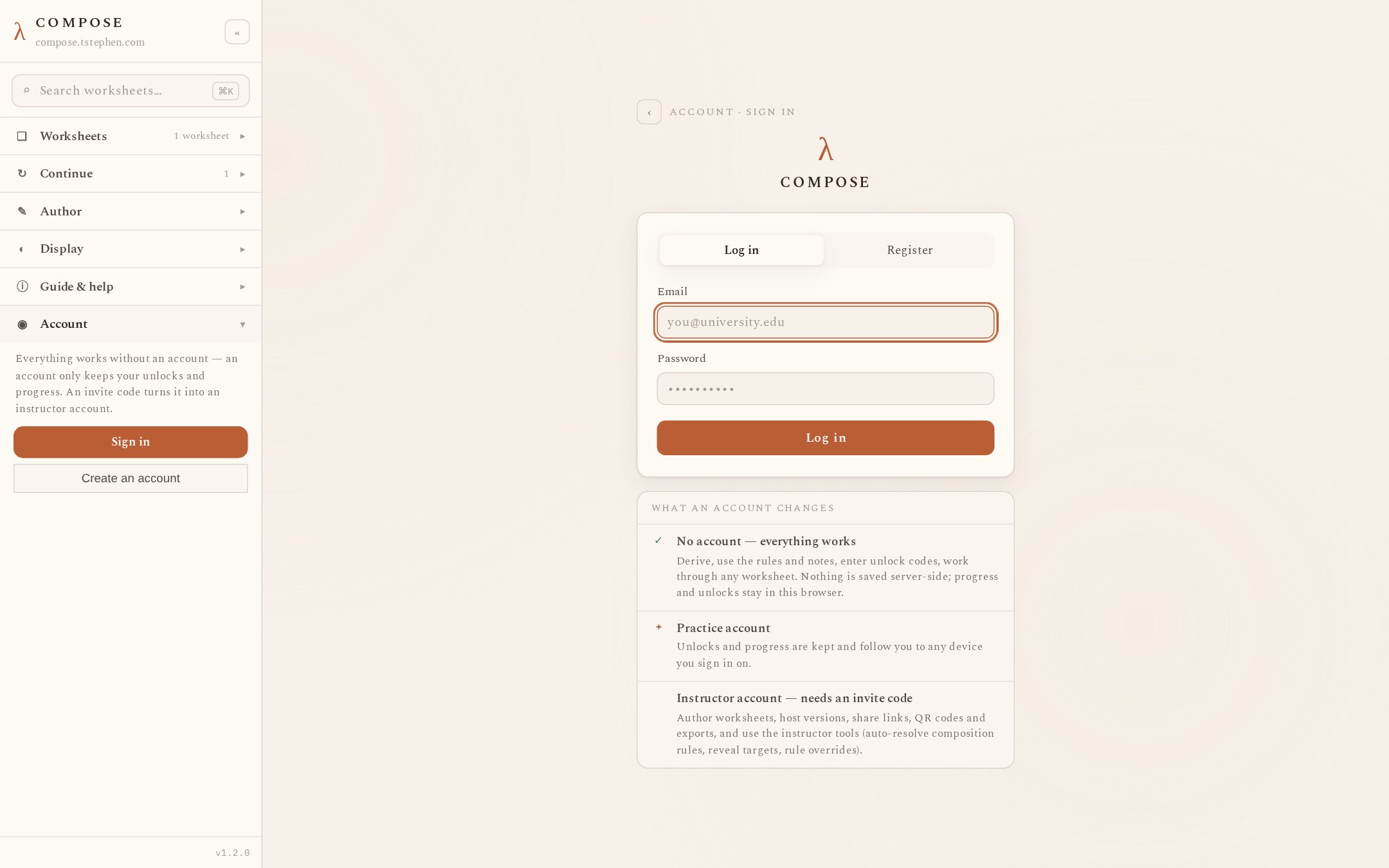
| Sign-in page | Not a separate URL: the sidebar’s Account section on any of the pages above opens it. Students register free practice accounts (email + password, at least 10 characters); an instructor invite code entered on the same form creates an instructor account. No verification email is sent — the server sends no email at all. |
| Worksheet editor | In the app: sidebar → Author → Worksheet editor (or ⌘E). Usable without an account; exports .compose.json; publishing to the server needs an instructor sign-in. The old /editor URL redirects here. |
| /dash | The original instructor dashboard, same accounts and versions as the in-app pages. Version management now lives in the app itself (sidebar → Assign & share → My versions); /dash remains for editing version notes and as a fallback. |
| /files | All 46 built-in worksheets and both textbook bundles as downloadable .compose.json, with a site map. |
| /help | Student reference (rules, symbols, grading) and worked derivation guides. |
| /about | Project description, credits, citation formats, what accounts store. |
Every documentation page in this table also opens inside the app: the sidebar’s Guide & help section (and the ⌘K palette’s Pages group) renders the guide, help, downloads and about pages in the app itself, with an “open standalone ↗” link back to the plain URL. The URLs above keep working for bookmarks, sharing and search engines.
What students see
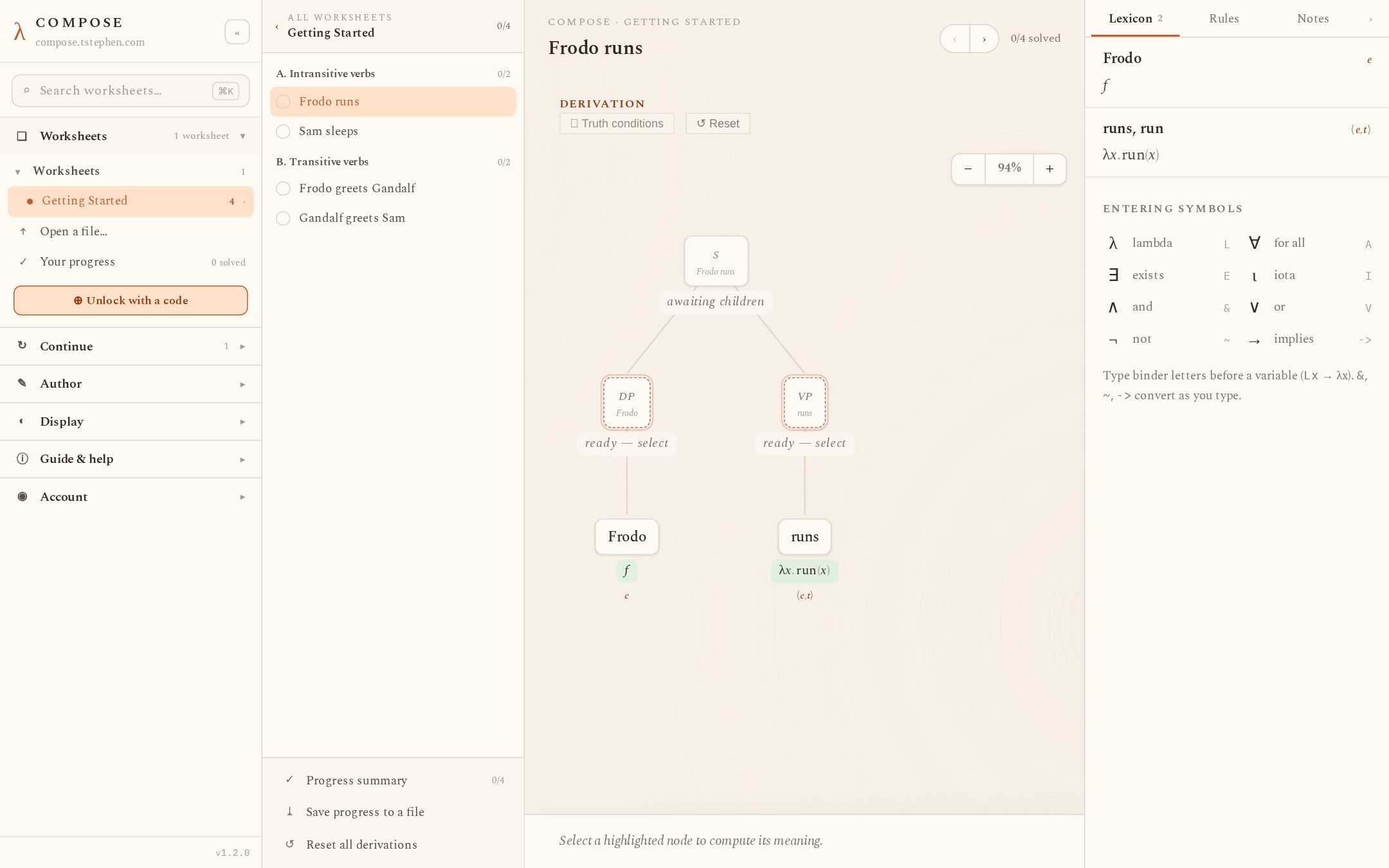
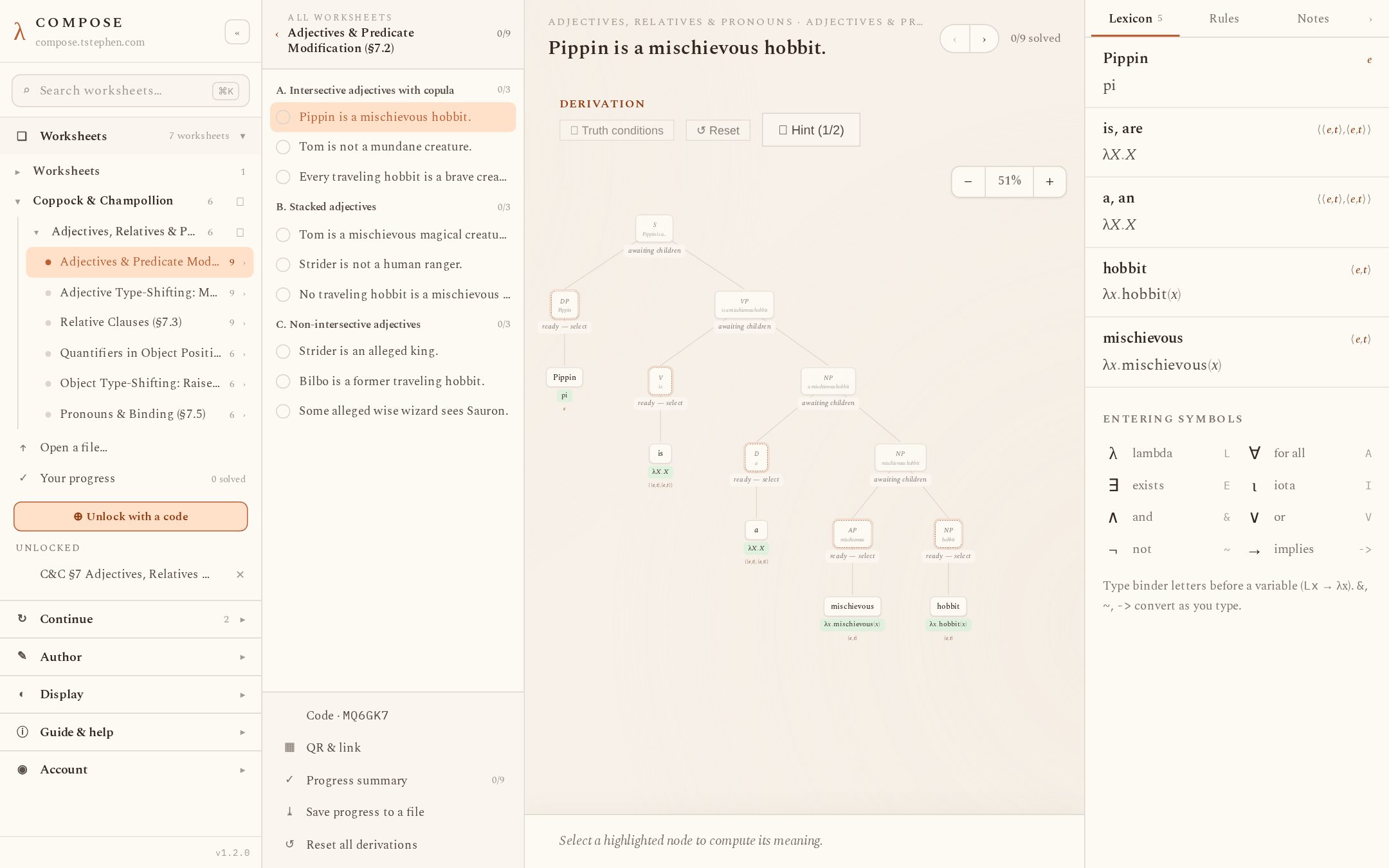
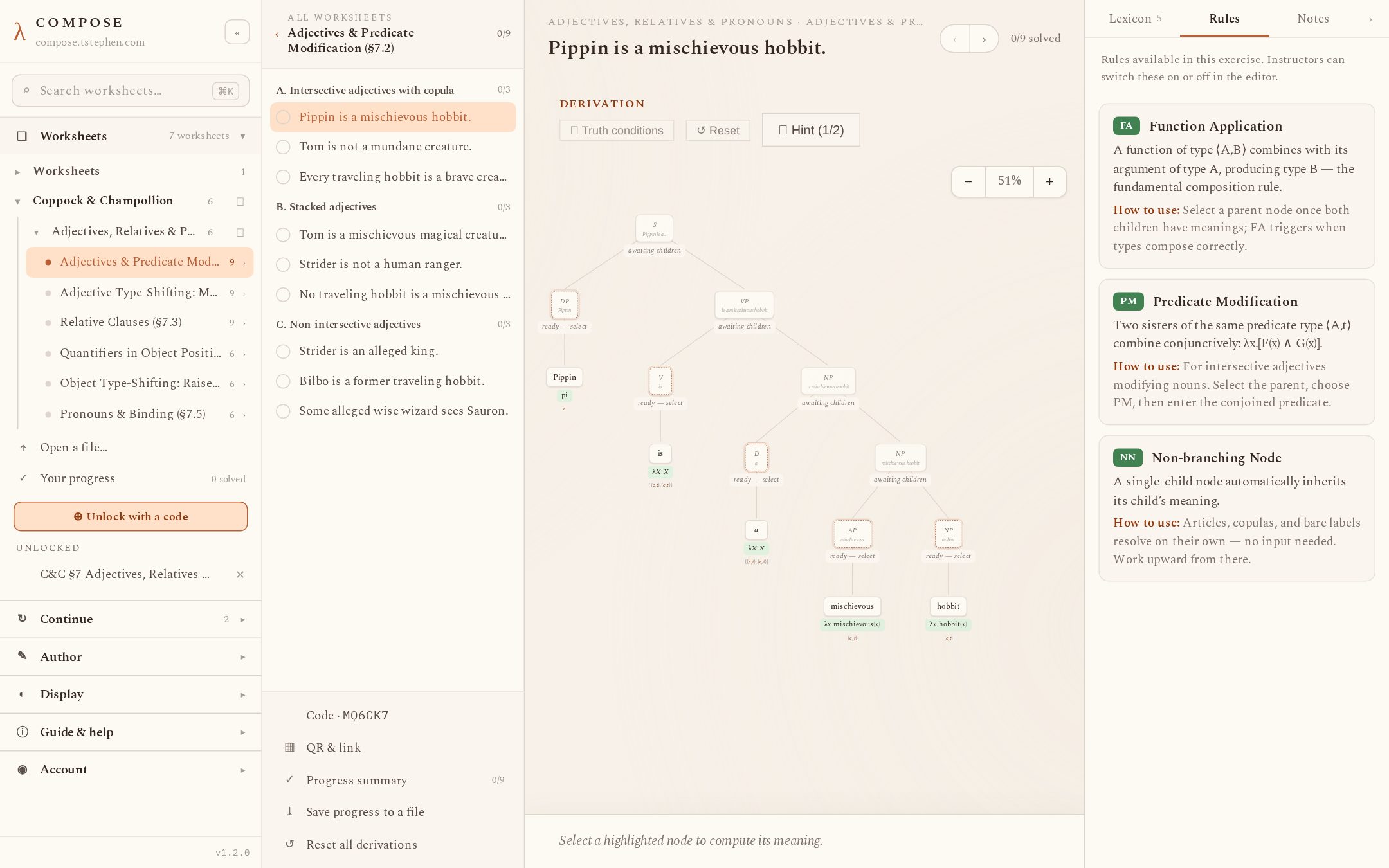
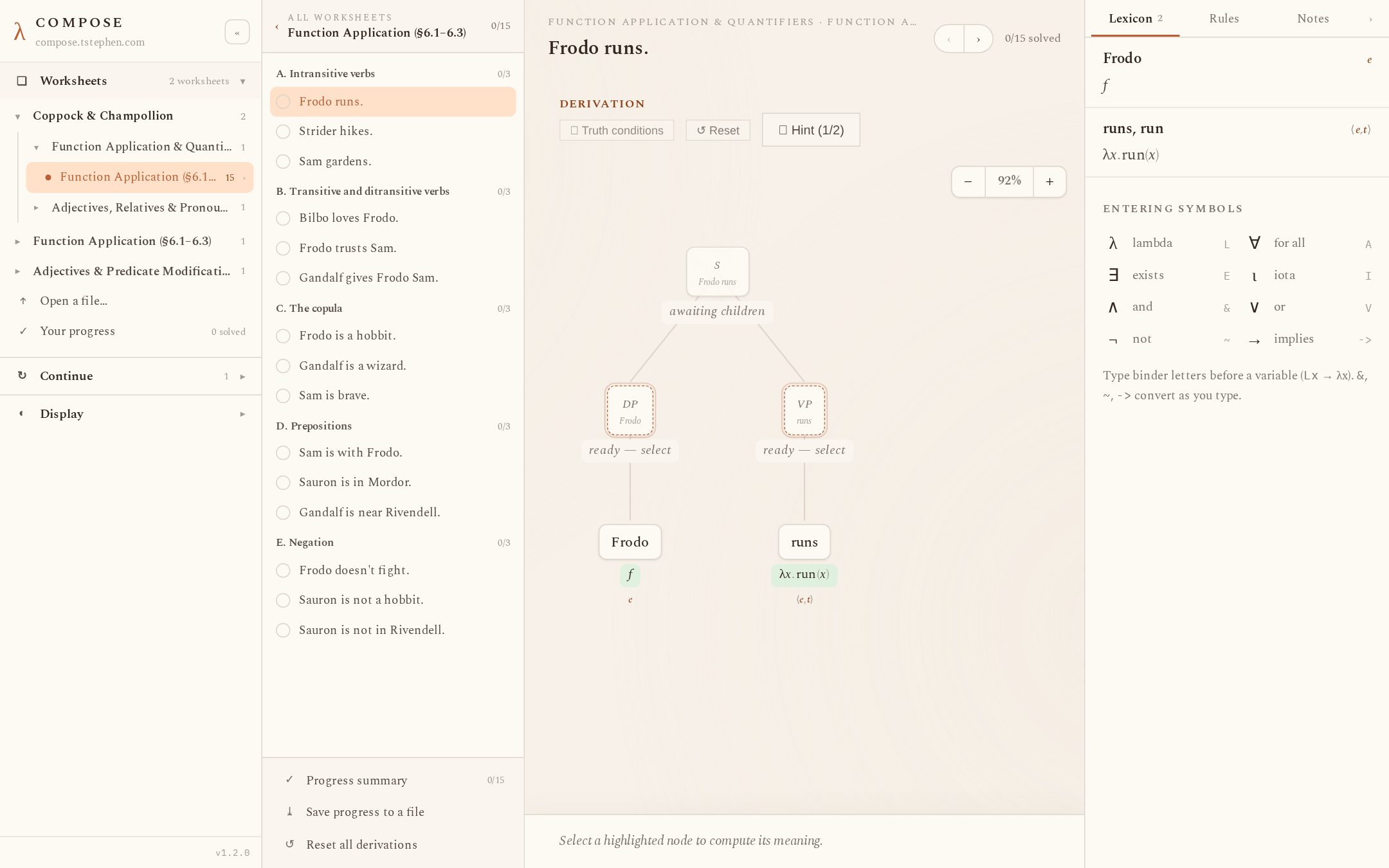
The app is one window with four columns. The sidebar (left) holds navigation in accordion sections — Worksheets (the built-in library, My worksheets, and any unlocked classes; the curated library nests by book — a Coppock & Champollion and a Heim & Kratzer family drop down to their chapter collections, then to worksheet rows, with Classic papers a single collection alongside), Continue (recently opened exercises), Display (theme and layout options, plus actions such as saving progress to a file), Guide & help, and Account. It loads expanded by default and stays that way when you pick a worksheet or an exercise — the expanded sidebar and the exercises column coexist. Collapsing it to a 58px icon rail is a deliberate choice (the ⌘\ shortcut or the header button), and that choice persists. Picking a worksheet opens the exercises column: the worksheet’s derivations, grouped, with a done ring per solved item, and a tinted bar pinned to the foot of that column carrying the worksheet’s ⌗ code, ▦ QR & link, a progress summary, and the save-progress / reset-all-derivations actions. The stage (centre) shows the current derivation tree. The reference panel (right) has three tabs: Lexicon (the worksheet’s words with their typed denotations), Rules (the composition rules enabled in this worksheet, with a description and usage note each), and Notes (the worksheet’s reading companion, present when the worksheet has one). The panel opens on Lexicon by default and remembers whichever tab and open/closed state the student last chose; opening a worksheet never forces a particular tab.
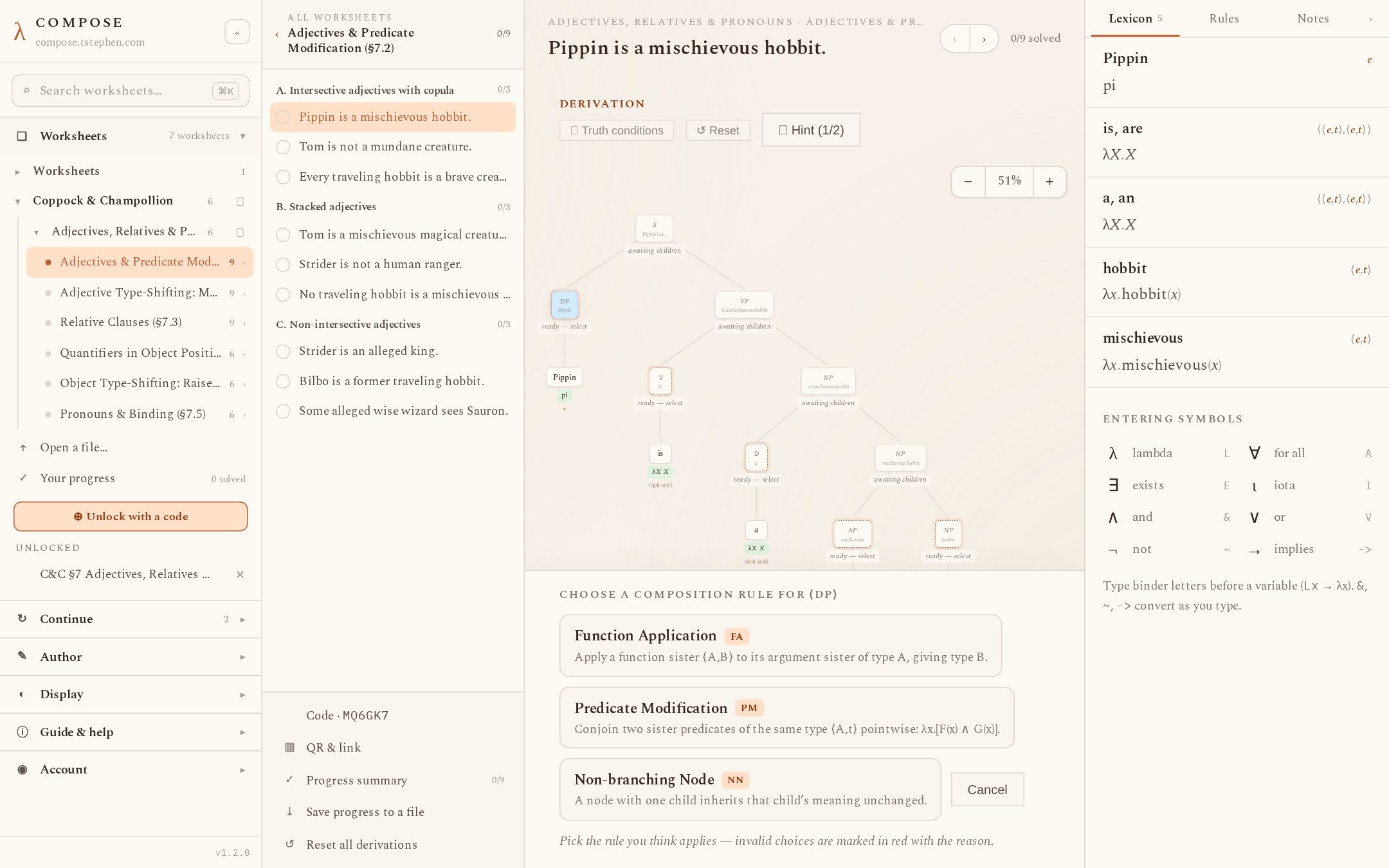
The workflow per derivation: click a node whose children are resolved, choose a composition rule, type the β-reduced result, submit. The grader accepts any answer α-equivalent to the target after normalization; conjunct order does not matter. Choosing an inapplicable rule is refused with the reason (for example: “Both sisters must be predicates ⟨A,t⟩ of the same type A. The sisters are ⟨e,⟨e,t⟩⟩ and e.”).
Keyboard: the whole derivation loop is operable by keyboard, and node states are announced to screen readers. ⌘K (Ctrl+K) opens a command palette that searches worksheets, the current worksheet’s exercises, pages and actions; J/K step to the previous/next exercise; a shortcuts dialog listing the rest is in the palette’s Actions group.
Input accepts ASCII shortcuts: Lx. → λx., & → ∧,
~ → ¬, -> → →, and a clickable symbol palette
covers the rest. The palette shows only the operator symbols the current
worksheet uses (a §6 worksheet shows no mereology or presupposition keys; the
§10 worksheets show ∗ ⊕ ≤; the definedness and tense/modal worksheets show
∂ ⊤ ⊥).
Where the author provided them, derivations carry staged hints (revealed one at a time; the final stage offers “Show answer” unless the version is set up as an assessment). Exercises can anchor to sections of the notes; opening an exercise scrolls the Notes tab to its section.
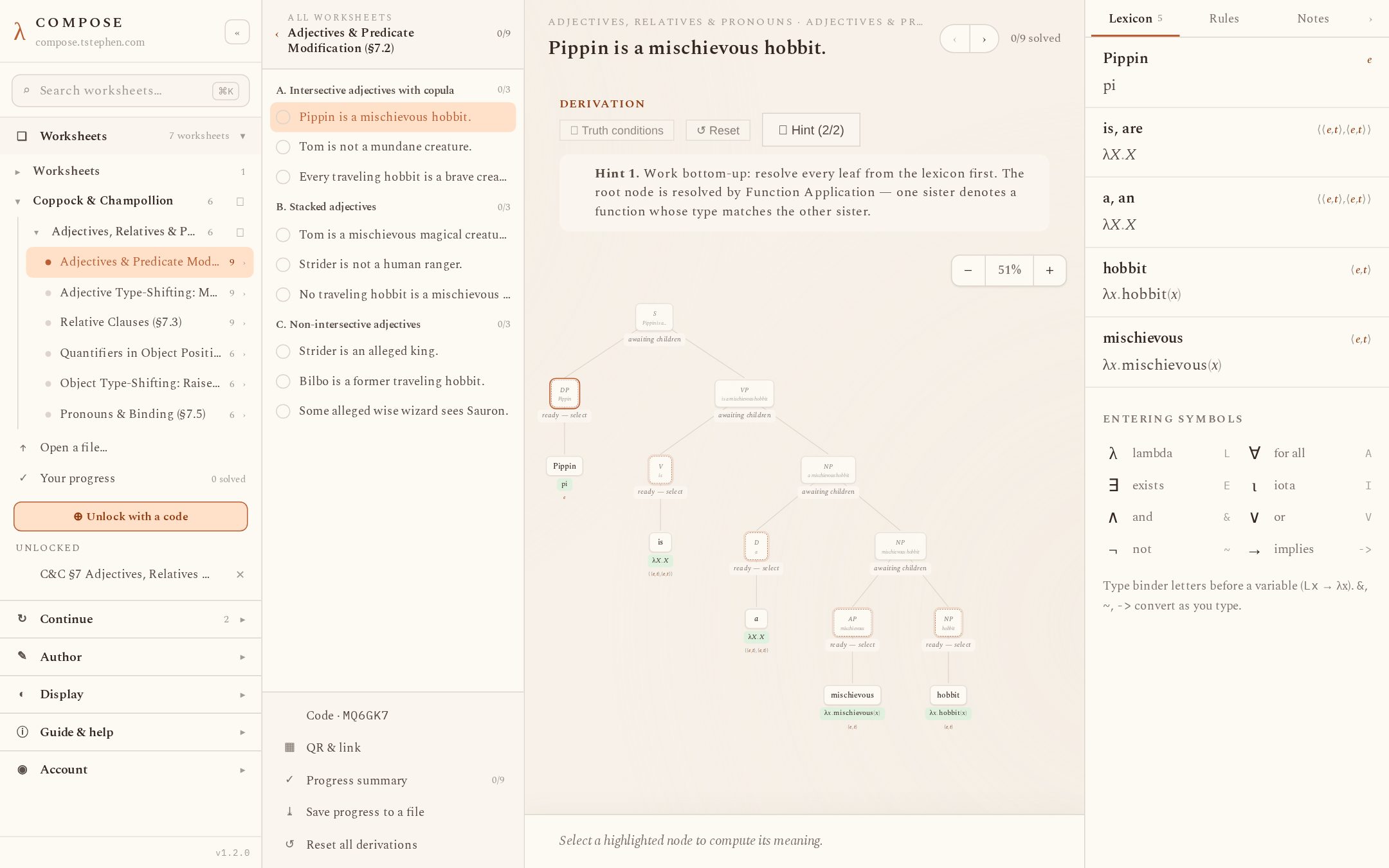
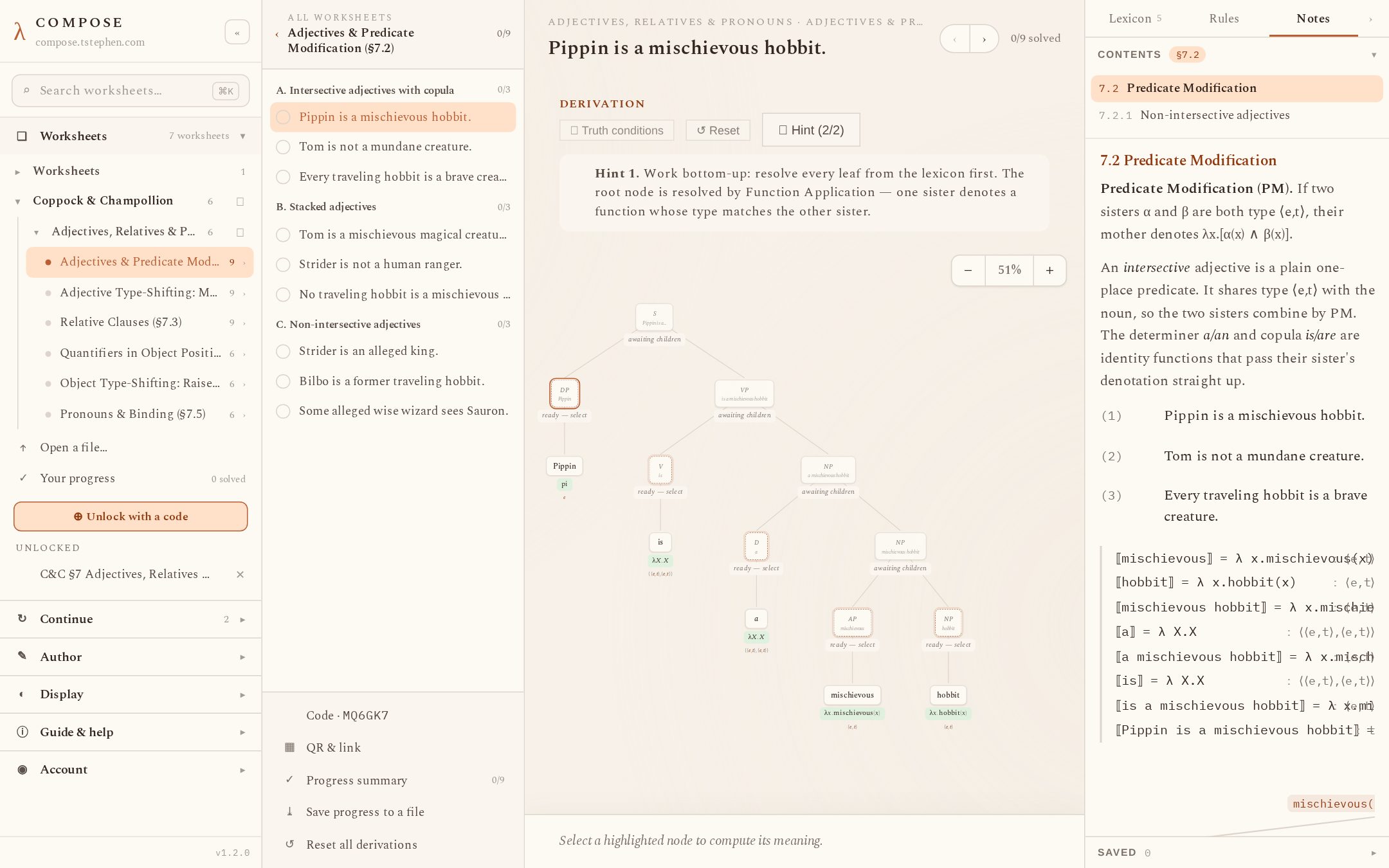
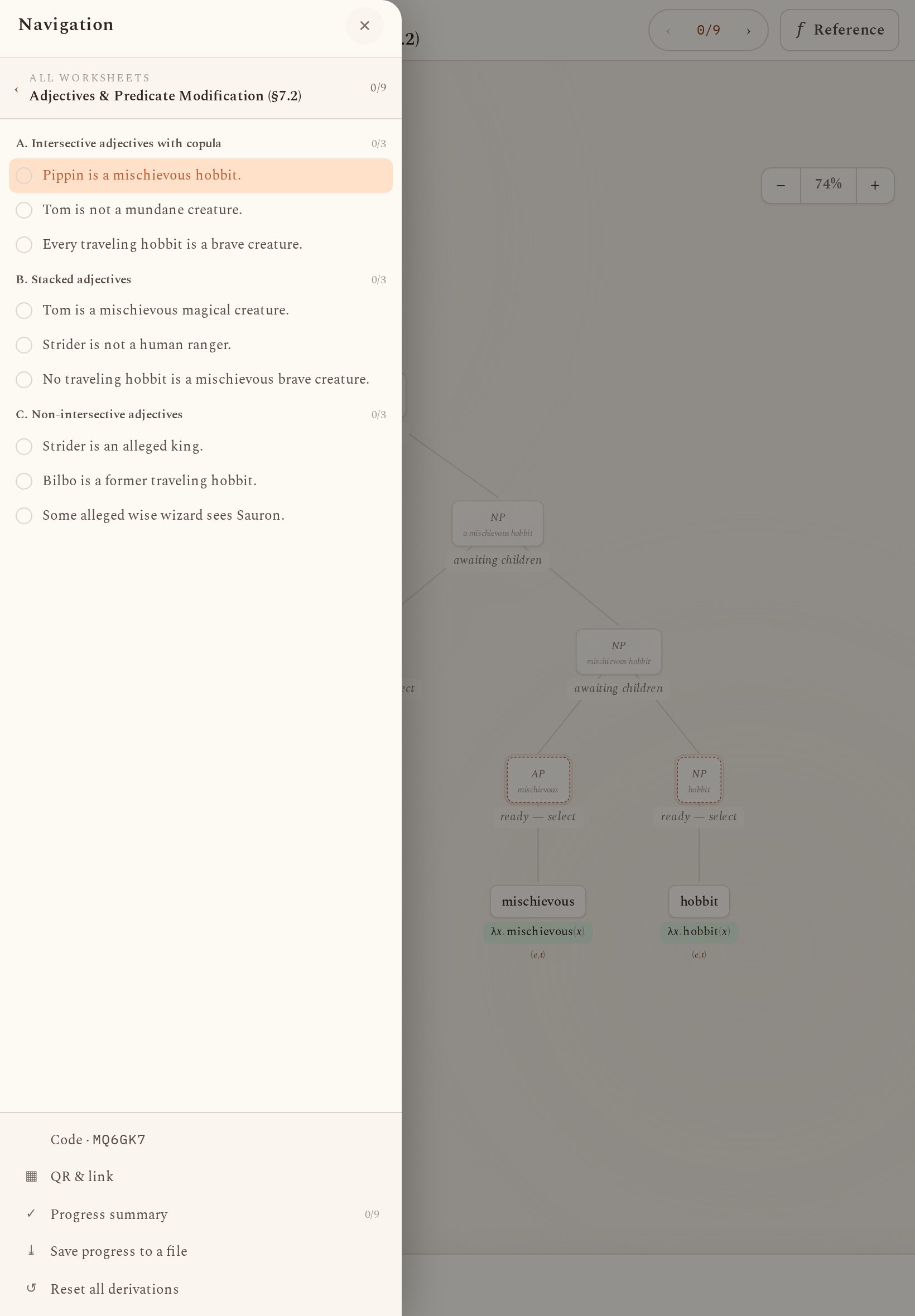
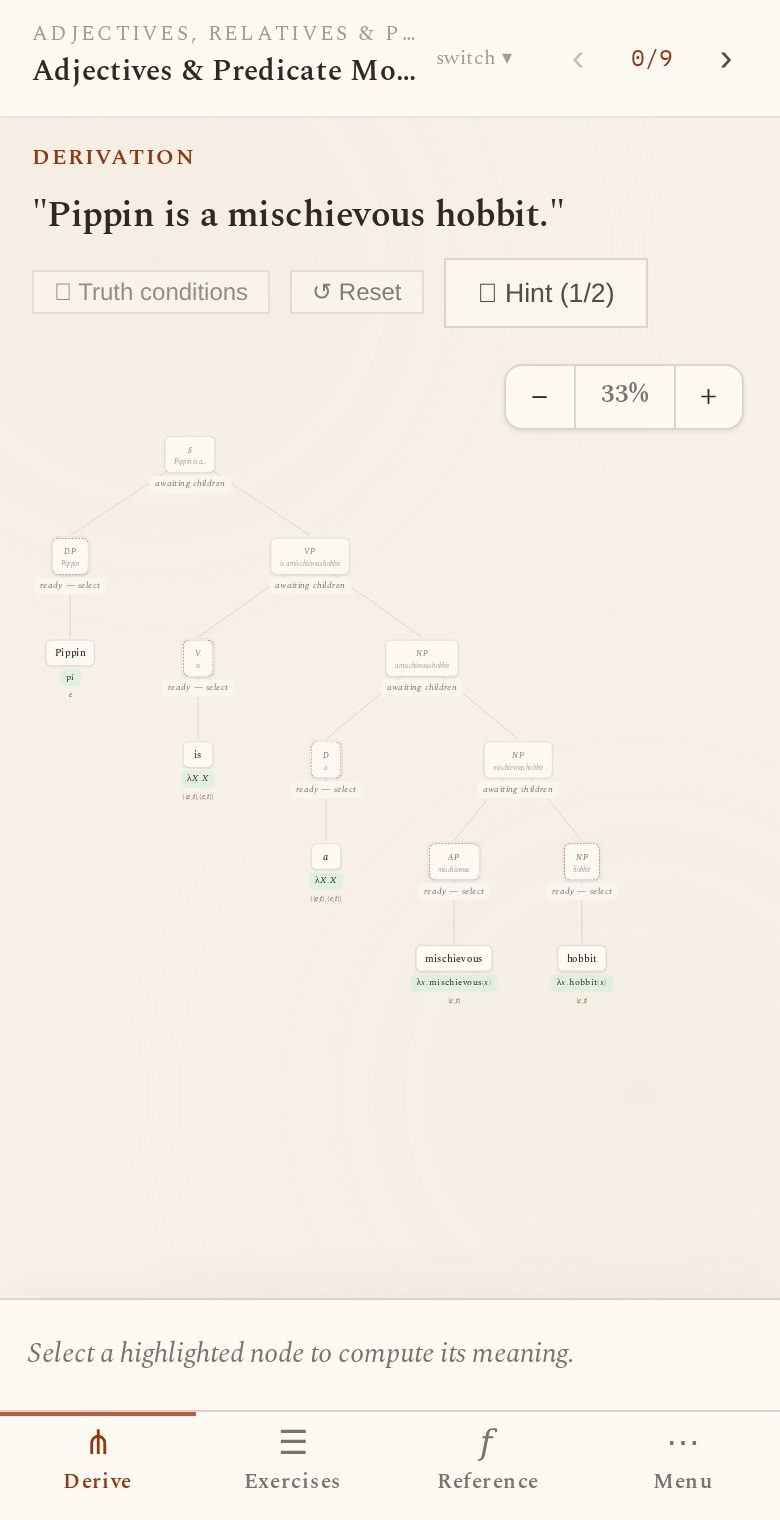
The layout adapts to screen width in three bands (v1.3.0). On tablets (760–1180px) the derivation stage is full-width under a slim app-bar; a ☰ button opens a left navigation drawer (the sidebar sections plus the drill-in exercises list), and a Reference button opens a right drawer with the Lexicon/Rules/Notes tabs. Both drawers slide over the stage with a dimmed backdrop and never shrink the tree. On phones (below 760px) the same content lives in a bottom tab bar — Derive, Exercises, Reference (the Lexicon/Rules/Notes tabs), and a Menu that carries the sidebar’s sections, unlock codes and settings. Worksheet-switching is on the Derive header and the Exercises tab; the phone’s switch sheet groups the library by book with a search box, and the Exercises tab ends in the same code / QR & link foot as the desktop exercises column.
Progress. Progress is stored in the browser’s localStorage. Since
v1.2.0 the app keeps ONE store for everything opened in it — the demo, the
whole built-in library, loaded files — while each hosted version’s
/v/ page keeps its own isolated store. (Progress students made
on the retired /cc-style pages is migrated into the app store automatically
on their first visit.) The sidebar’s Your progress page shows
per-worksheet solved counts and has “Save to a file” / “Restore” buttons for
moving progress between machines. A signed-in student’s progress
additionally syncs to their account, so it follows them across browsers.
The app registers a service worker on first visit and afterwards loads —
including already-fetched library worksheets — without a network
connection.
Getting material to students
Three ways, in the order we recommend them:
| Method | Behaviour |
|---|---|
| An unlock code | For hosted material you control (a version, below). Students sign in and enter the six-character code once; the class appears in their sidebar under My classes and their progress syncs to their account. You can change the content after distribution. Hosting a version is instructor-only — students can register, redeem codes and sync progress, but cannot publish hosted material. |
| A library code / QR / link | Every built-in worksheet, chapter and whole collection has a fixed six-character code — no account needed on either side. Students enter it under “⊕ Unlock with a code” (or scan the QR / open the link, which encodes /?code=CODE): the content is fetched into the app, opens immediately, and stays in their sidebar under Unlocked. Students don’t see the full library by default, so the code is how you point a class at exactly the right shelf. Find the codes in the app: a worksheet’s ⌗ Code and ▦ QR & link buttons at the foot of its exercise list, the ⌗ beside chapter headings and the Full-library rows (instructor sidebar) — or simply right-click any worksheet or chapter row in the sidebar: a small menu offers ⌗ Share code, ▦ QR & link and (on worksheets) ✎ Copy to editor. Your own hosted versions’ sidebar rows offer the same right-click share menu — there it carries the version’s unlock code, with ✎ Edit opening the hosted editor instead of Copy to editor. The whole-collection codes: C&C KT6WF4, H&K CETGZ4, papers QIPYVM. Chapter codes: cc/ch6 DXKHFU · cc/ch7 QI753D · cc/ch8 U9INJS · cc/ch10 JV5NKN · cc/ch11 F7Q8Y7 · cc/ch12 7N7UWF · cc/ch13 VYDXIG · hk/ch1 2U95R2 · hk/ch2 IWAHYZ · hk/ch4 YPEQCQ · hk/ch5 8IIRCE · hk/ch6 3FCWXC · hk/ch7 AUY39C · hk/ch9 C64QMV · hk/ch12 R53MVA · papers/partee 4UV9HE · papers/ptq JKTYCU · papers/krifka QGAWIZ · papers/davidson TRGU6C · papers/partee-rooth 3IKHNW · papers/barwise-cooper Y97C9T · papers/link SBG4MN. |
/v/<slug> | A version’s direct student link: the same content the unlock code enrols students in, without an account. Progress stays in that browser only. Kept for handout/QR distribution and as the no-account path; a printed link keeps working alongside the code. |
Authoring worksheets
The editor runs without an account: open the sidebar’s Author section and pick Worksheet editor (or press ⌘E). A worksheet consists of: a domain (constants and variables with types), a lexicon (words with λ-denotations), a rule configuration, and exercises (groups of derivations, each a bracketed tree with optional targets, hints and notes anchors). The file format is JSON, documented in FORMAT.md; any worksheet from /files can be used as a template.
Opening and importing
The editor opens on the worksheet currently loaded in the app; pick a
different one from the sidebar’s Worksheets section first, or use
+ New in the editor header for a blank sheet. To import, use the
Author section’s Import worksheet… row or drop a
.compose.json / .compose-bundle.json file anywhere
onto the window. Imported and newly authored worksheets are stored in the
browser and listed under My worksheets in the sidebar.
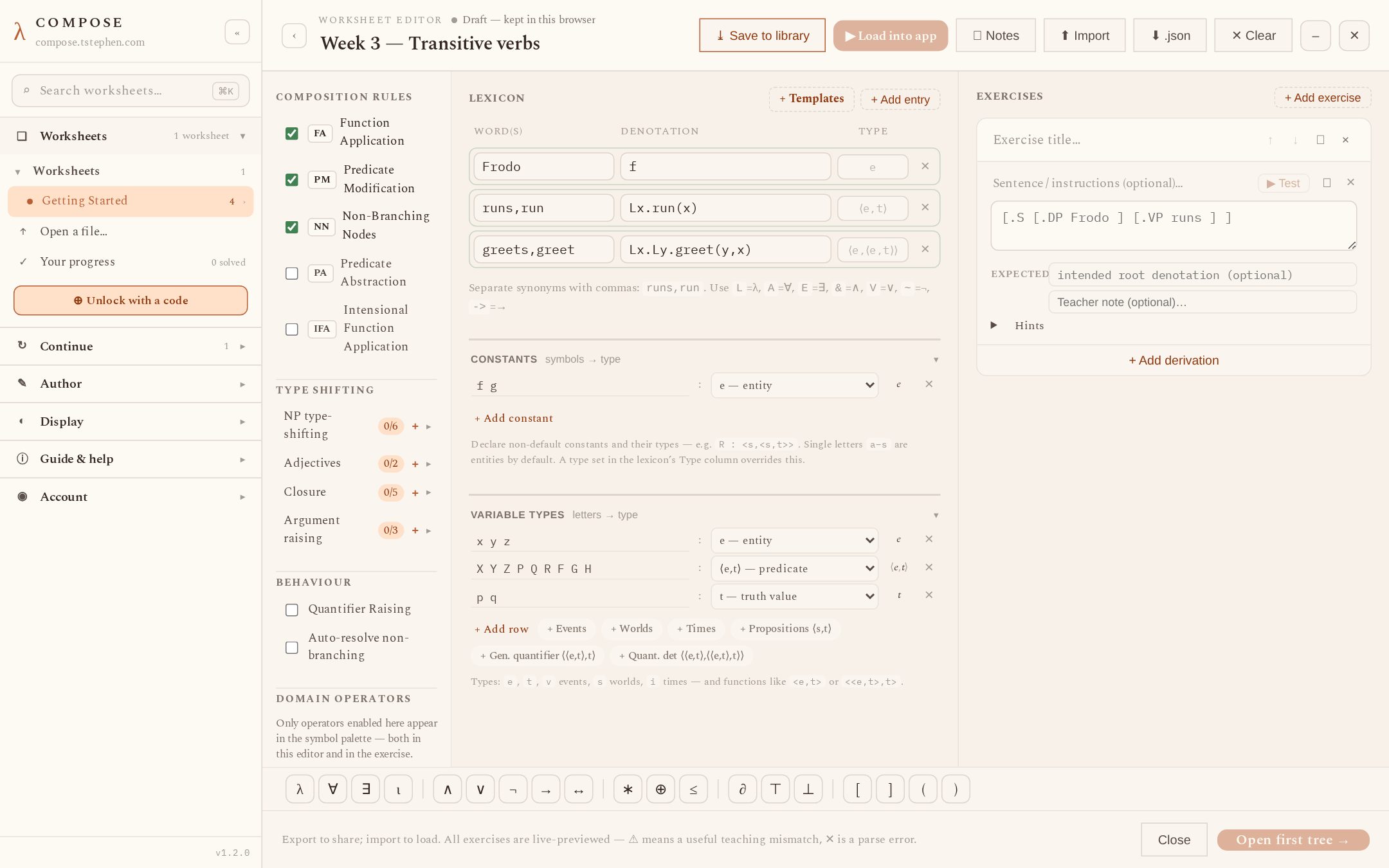
The editor surface
Left column: checkboxes for the five composition rules (FA, PM, NN, PA,
IFA), the type-shifting inventory grouped by family (NP shifts, adjectives,
closure, argument raising), behaviour switches (Quantifier Raising,
auto-resolve non-branching nodes), and domain operators (∗ ⊕ ≤ ∂ ⊤ ⊥) —
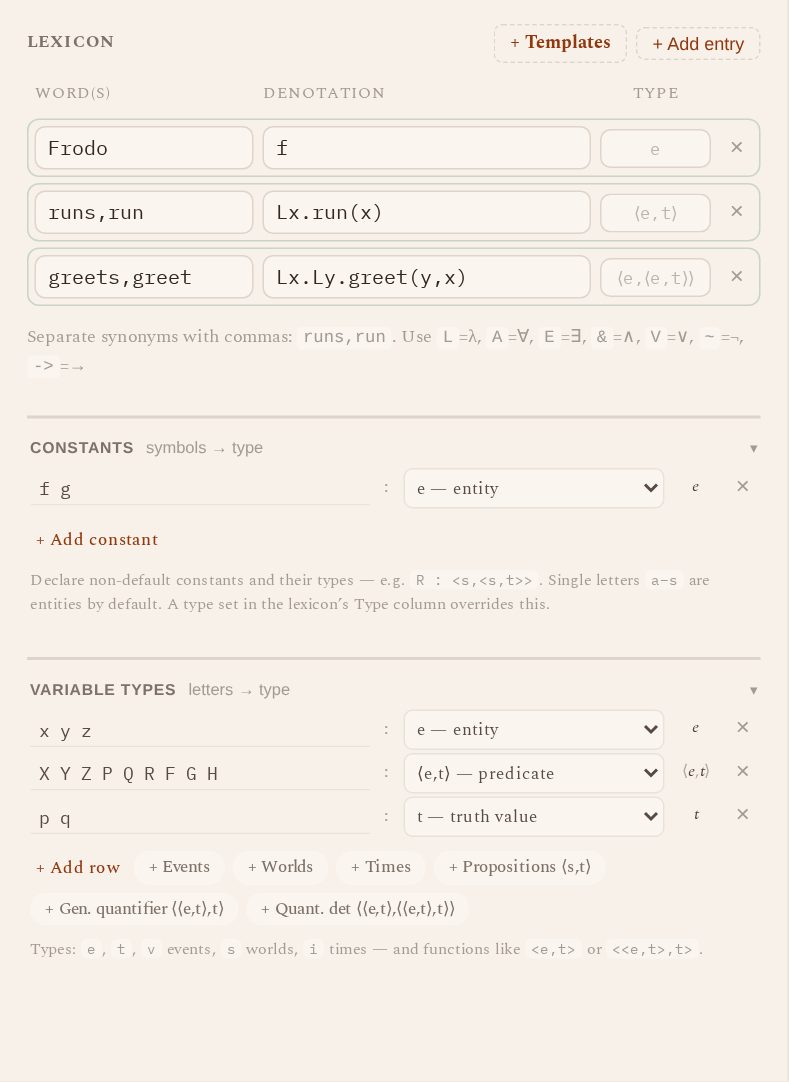
students’ symbol palettes show exactly the operators enabled here. Centre:
the lexicon. Words are comma-separated for synonyms
(runs,run); denotations are typed in ASCII
(Lx.Ly.greet(y,x)). The engine parses each entry as you type and
displays its computed type, or a parse error. Below the lexicon: constant
declarations (f g : e) and variable-type declarations, with
one-click additions for events, worlds, times, generalized quantifiers.
Derivations
Right column: exercises. A derivation is a labelled-bracket tree —
[.S [.DP Frodo ] [.VP runs ] ] — where leaves are lexicon words.
Optional fields per derivation: a display sentence, an expected root
denotation, a teacher-only note, and hints (one per line, revealed in order).
▶ Test solves the tree with the engine and shows the computed root
meaning and type; the expected field shows ✓ if they match, ✕ if not.
▶ Load into app loads the worksheet as a student would see it.
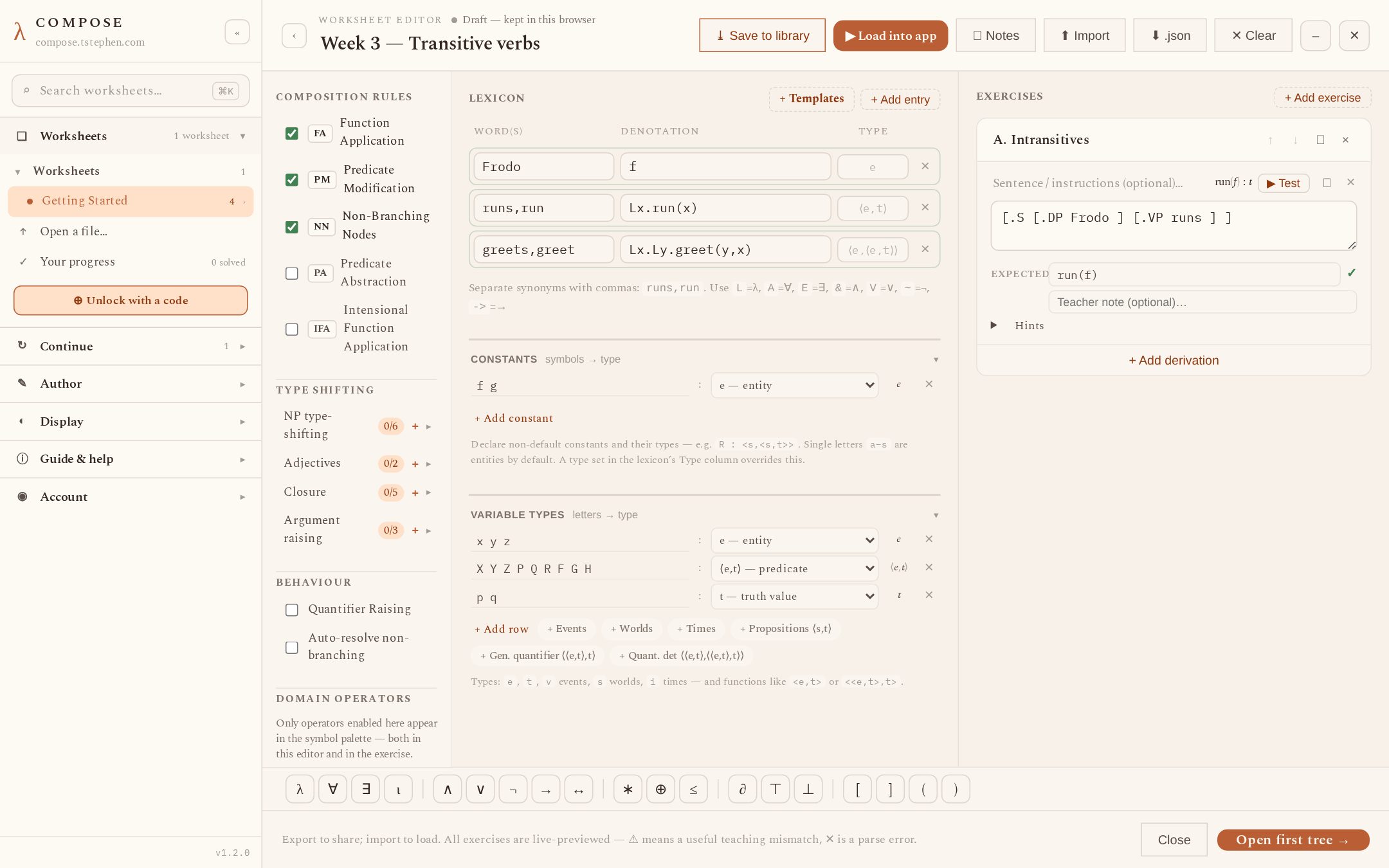
run(f) : t for the tree, matching the expected denotation (✓).Notes
The Author section’s Notes row opens a two-pane editor: source on
the left, rendered student preview on the right. The input format is Markdown
for document structure with LaTeX for linguistic content — the full construct
list is in the reference below. ##
headings become sections; a derivation’s “section” field anchors it to one,
and the student Notes tab scrolls there when the derivation is opened.
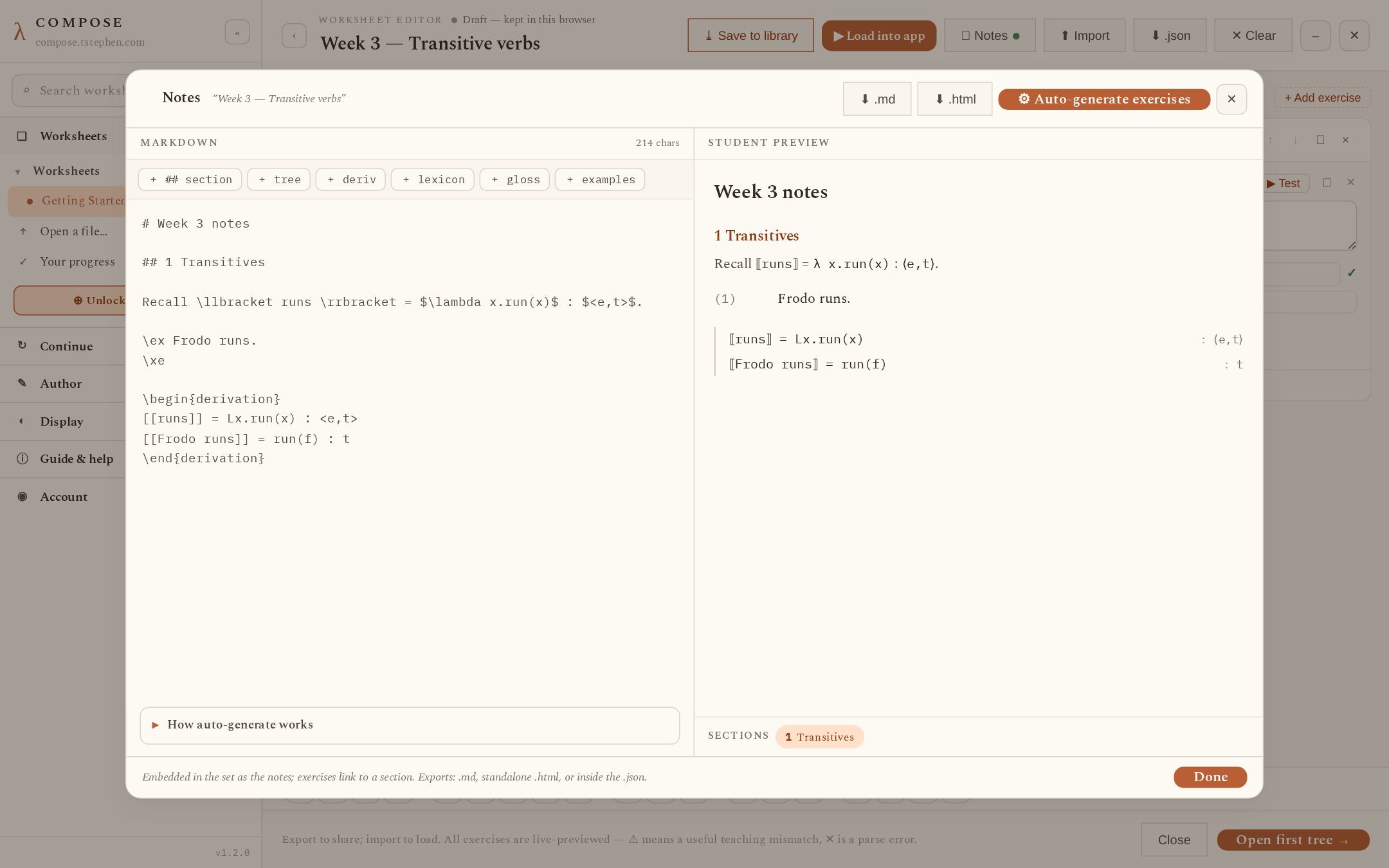
\llbracket…\rrbracket, $…$, an expex example and a derivation environment; the preview (right) is what students see.Saving and exporting
Header buttons: Save to library (stores in this browser),
▶ Load into app, and .json (downloads the worksheet source);
signed-in instructors also get ⇗ Share · code + QR / ⇗ Host &
get code here — hosting the current worksheet and opening the share
dialog in one step (below).
The .compose.json file is the worksheet: it is what you
re-import, hand to students directly, or upload to a hosted version. To
distribute worksheets to a class, host them in a version and share the
unlock code or the /v/ link (below), or share the
.compose.json file itself.
Notes input reference
Notes (worksheet reading companions and version notes) are written in Markdown with a fixed set of LaTeX constructs. The renderer implements the constructs below natively; commands outside this list are shown as literal source rather than dropped.
Document structure (Markdown)
| Input | Result |
|---|---|
# A · ## B · ### C | Headings. ## headings are the anchors exercises can point to. \section{…}, \subsection{…}, \subsubsection{…} are equivalent. |
| blank line | Paragraph break. |
**bold**, *italic*, `code` | bold, italic, code. \textbf, \emph/\textit, \texttt are equivalent; \textsc{…} renders small caps. |
- item or \item inside itemize/enumerate | List item. |
[^a] + [^a]: text, or \footnote{text} | Footnote; all footnotes are collected at the end with back-links. |
\href{#g1.d2}{see (12)} | A link that opens derivation d2 of group g1 in the current worksheet. |
Math and denotations
| Input | Renders as |
|---|---|
$\lambda x. \neg run(x)$ or \(…\) | λx.¬run(x) |
$$ … $$ or \[ … \] | The same, as a centred display line. |
<e,<e,t>> (in math) | ⟨e,⟨e,t⟩⟩ |
\llbracket runs \rrbracket, \den{runs}, \sv{runs} | ⟦runs⟧ (stmaryrd-style denotation brackets; ⟦…⟧ may also be typed directly, and [[…]] works inside math and derivation blocks) |
x_1, x^2, x_{12} | Sub/superscripts: x₁, x². |
/\ \/ ~ -> <-> => |-> != <= | ∧ ∨ ¬ → ↔ ⇒ ↦ ≠ ≤ |
lambda forall exists iota (bare words in math) | λ ∀ ∃ ι |
Symbol commands available in math: Greek letters
(\alpha…\omega, \Gamma \Delta \Sigma \Pi \Omega);
logic \neg \land \wedge \lor \vee \to \rightarrow \leftrightarrow
\Rightarrow \Leftrightarrow \models \vdash \equiv; sets
\in \notin \subseteq \subset \cup \cap \emptyset \varnothing
\setminus
; orders and mereology \leq \geq \sqsubseteq \sqcap
\sqcup \oplus \otimes \ast \star; other
\top \bot \partial \circ \cdot \times \mapsto \mid \neq \approx \sim
\langle \rangle \ldots \cdots \prime
. \text{…} and
\mathrm{…} unwrap to plain text; \, and other
spacing commands become spaces.
Numbered examples (expex, linguex, gb4e)
| Input | Result |
|---|---|
\ex Frodo runs.\xe | (1) Frodo runs. — numbering is automatic and continuous through the document. |
\pex Context sentence.\a First variant.\a *Second variant.\xe | (2) with lettered sub-examples a., b. A leading * ? ?? ?* *? # % ✓ is set off as a judgment (glued or spaced). |
\ex. Frodo runs.\a. *Runs Frodo. | linguex equivalents of the above. |
\begin{exe} \ex … \begin{xlist} \ex … \end{xlist} \end{exe} | gb4e equivalents. |
\ex<neg> … or \label{neg}, then \ref{neg} / \getfullref{neg} | Label an example; references render as the example’s number — 3 / (3) — and click-scroll to it. |
Glosses (expex \begingl)
Input:
\begingl
\gla neko-ga neru //
\glb cat-NOM sleep //
\glft 'the cat sleeps' //
\endgl
Result: word-aligned two-line gloss with the translation beneath.
Leipzig abbreviations in the gloss line (NOM, 3SG, NEG, …) are set in small
caps and show their expansion on hover. A \begingl block inside
\ex…\xe attaches the gloss to that example's number.
Trees (qtree, forest)
Input, either form:
\Tree [.S [.NP Frodo ] [.VP runs ] ]

\begin{forest}
[S{run(f)} [DP{f} Frodo] [VP{Lx.run(x)} runs]]
\end{forest}
Result: a typeset syntax tree. {…} after a node label is a
denotation, displayed under the category label. Wrapping a terminal in
<…> draws a roof. Forest option preambles before the first
bracket are ignored.
Denotation tables (COMPOSE-specific)
LaTeX has no standard environment for type-annotated denotation steps, so
this one construct is COMPOSE's own. One step per line,
expression : type; the types right-align into a column;
indentation indents the row; blank lines leave a gap.
\begin{derivation}
[[runs]]       = Lx.run(x) : <e,t>
[[Frodo runs]] = run(f)    : t
\end{derivation}
There is also an avm environment for feature structures
(ATTR: value per line, nesting with brackets, &
and \\ row syntax accepted).
IPA (tipa subset)
\textipa{…} maps a subset of tipa ASCII to IPA:
@→ə E→ɛ I→ɪ O→ɔ
U→ʊ V→ʌ &→æ S→ʃ
Z→ʒ T→θ D→ð N→ŋ
?→ʔ :→ː "→ˈ %→ˌ,
among others. Unmapped characters pass through unchanged.
Hosting for a class
The hosted flow, end to end: create a version (a worksheet
collection the server hosts for you) → choose what it contains on the
Assign & share page → hand the version’s unlock code to
your students → each student signs in and enters the code once. The class
then appears in their sidebar under My classes, and their progress is
kept on their account. Hosting versions is instructor-only and enforced
by the server: a free student account can register, redeem codes and sync its
progress, but cannot create or publish a hosted /v/ version.
Your hosted versions also appear in your own sidebar under Worksheets →
My versions: open a worksheet there to preview it exactly as an
enrolled student sees it (progress shares the version’s store), or
right-click a row for its code, QR and ✎ Edit.
Signed in as an instructor, sharing is also one click from the
worksheet itself: the editor header shows ⇗ Share · code + QR
for a hosted worksheet — or ⇗ Host & get code for one not hosted
yet, which creates the version for you — and the same ⇗ Share button sits
above a hosted worksheet’s derivation. Every entry point opens the share
dialog, which leads with the unlock code (⧉ Copy, ↻ New code) and carries
the QR code, the /v/ link and a printable handout below.
Accounts
Instructor registration needs an email address, a password of at least 10 characters, and an invite code (available from the administrator — see /about): open the sidebar’s Account section → Sign in → Register tab → “I have an invite code”. Students register on the same form without a code. No confirmation email is sent and there is no self-service password reset; a forgotten password is reset by the administrator. What an account stores is listed on /about.
Versions
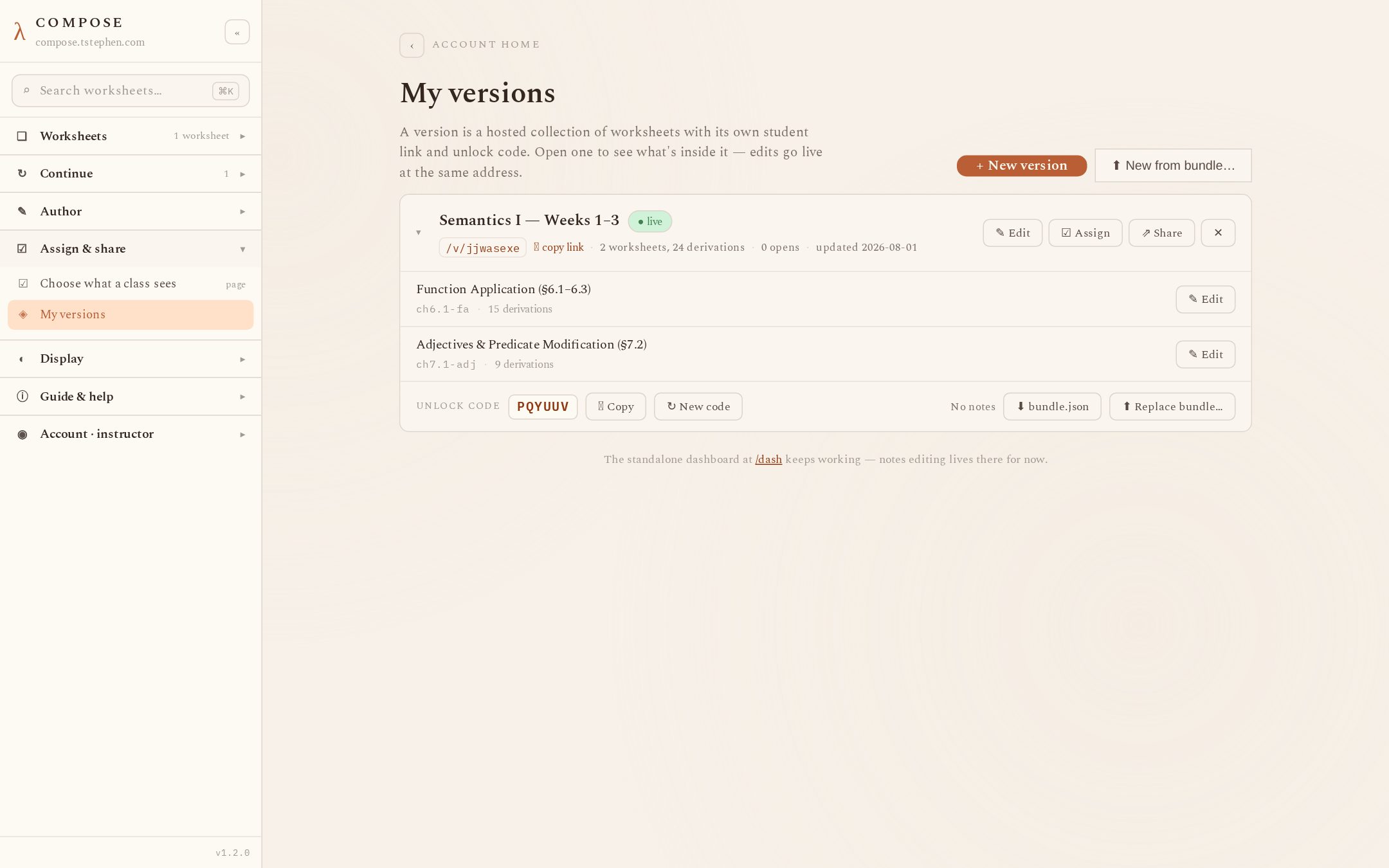
A version is a hosted worksheet collection with its own unlock
code and student URL. On the My versions page (sidebar → Assign & share):
+ New version creates one from a title; ⬆ New from bundle
creates one from a .compose-bundle.json file. Each version row
shows the published state (● live / ○ hidden — unpublished versions can’t
be redeemed and their student link returns 404), the /v/… slug,
worksheet and derivation counts, an opens counter, and, expanded: the
worksheet list (one ✎ Edit per worksheet), the unlock code with ⧉ Copy and ↻ New code
(regenerating invalidates the old code; existing enrolments keep working),
bundle download/replace, and delete.
Content gets into a version three ways: pick worksheets on the
Assign & share page (below), author in the editor
and save to the version (✎ Edit on the version row or on any single
worksheet inside it — both open the in-app editor), or import a bundle
file. Every save is validated server-side: the same engine parses every
worksheet and rejects the save with exact error paths (for example
worksheets[0].content.lexicon[2].denotation) if anything fails;
limits are 2 MB, 40 worksheets, 400 derivations per version, unique
worksheet keys.
Assigning and sharing
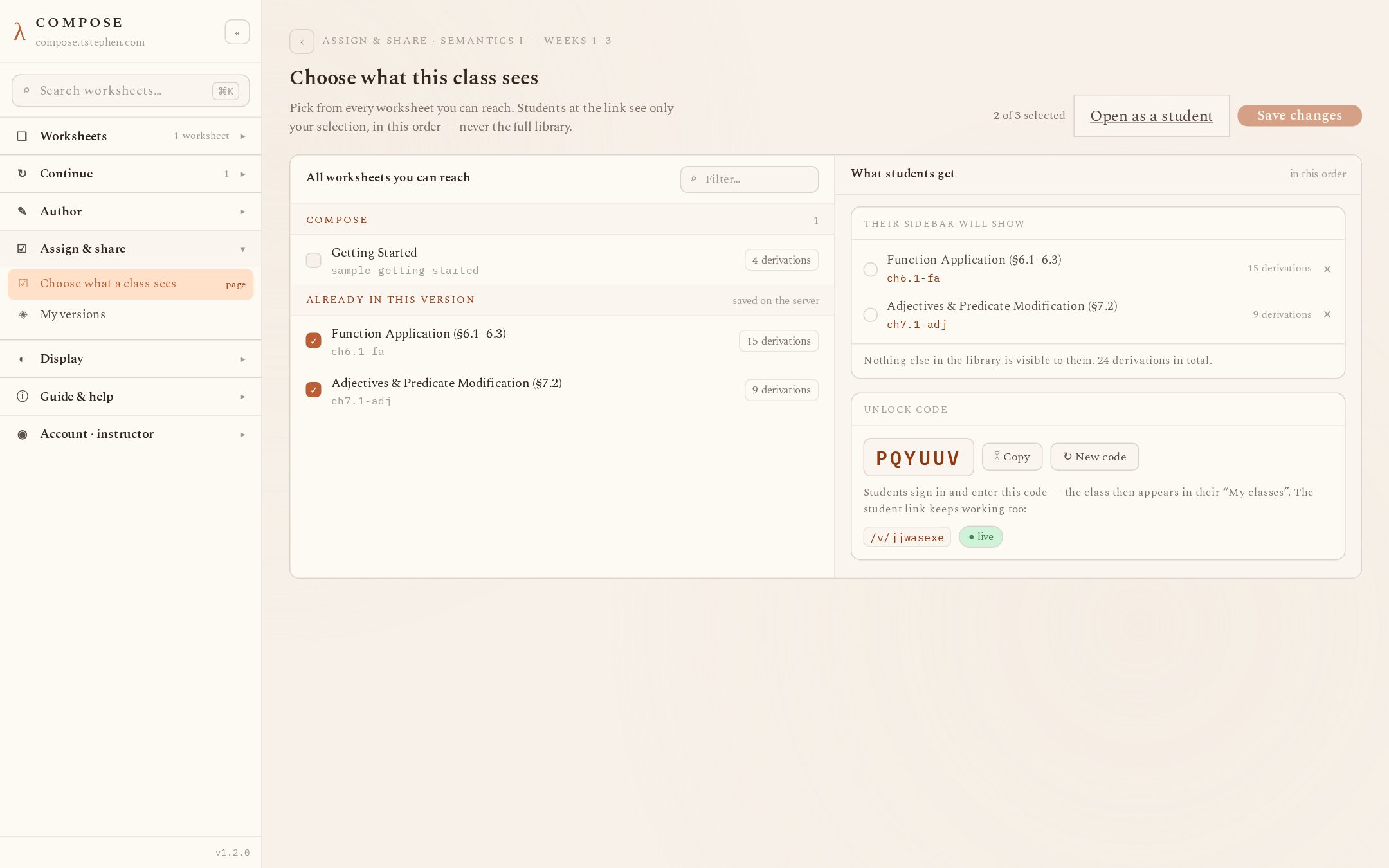
The Assign & share page (sidebar section of the same name, or
☑ Assign on a version row) is where you choose what the class sees: the left
column lists every worksheet you can reach (the built-in library, your own,
the version’s current content), the right column shows the resulting
student-visible set, the unlock code large with ⧉ Copy and ↻ New code, the
/v/ link, and the published toggle. Saving replaces the
version’s content — students see the change on their next load, without
re-entering the code.
To distribute: give students the code (say it, write it on the board, put it in the LMS). They sign in — creating the free account if needed — and enter it in the sidebar’s “⊕ Unlock with a code” row (on the phone, the ⊕ Unlock chip). Codes are case-insensitive; entering one twice is harmless.
The ⇗ Share dialog (on the My versions row, in the editor
header, or above a hosted worksheet’s derivation) is the one complete
share surface: the unlock code first, then the direct
/v/<slug> link as text, a QR code, a PNG download and a
printable A4 handout. The link and QR work without any account — use them
where accounts are not wanted; progress then stays in each student’s
browser instead of on an account, and enrolment counts are not tracked.
What the student link opens
/v/<slug> serves the same app, loaded with the
version’s worksheets — the identical content an enrolled student sees under
My classes, and the two share one progress record per browser. If the
version has notes, students get the Notes tab; the Rules tab and hints work
as on library pages.
/v/ link opens, and what an enrolled student sees in-app.Files & offline use
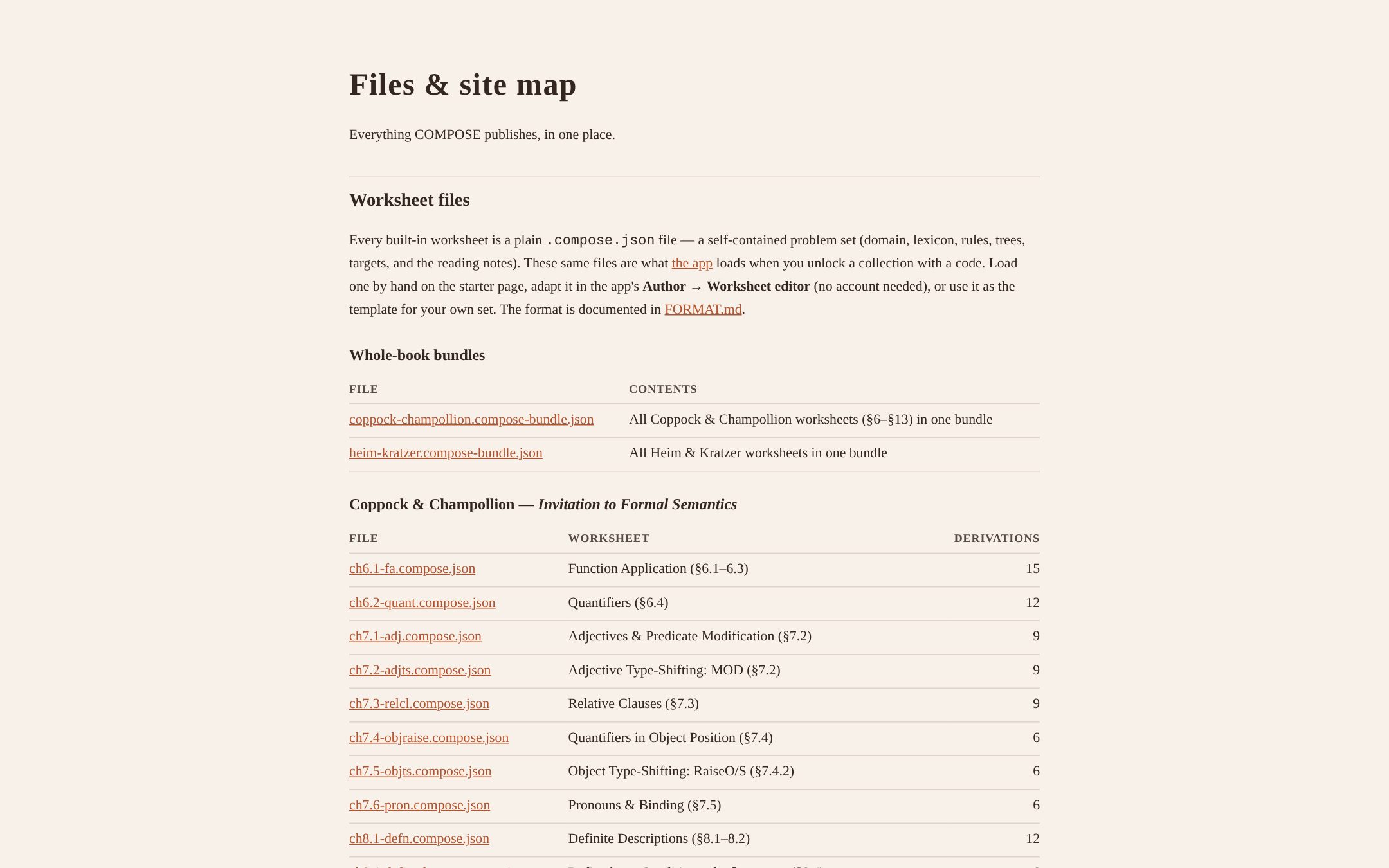
.compose.json, with titles and derivation counts.Offline behaviour: the app works offline after a first visit, including
library worksheets it has already fetched (service worker; /dash is never
cached). Worksheets themselves travel as .compose.json files,
which load on any COMPOSE page straight from disk.
Invite codes and questions: /about · source repository